Set up the layers of a survey and the fields each object carries, photo and video fields among them. A layer becomes one table in the export: one geometry type, its own colour, its own columns.
Creating a layer
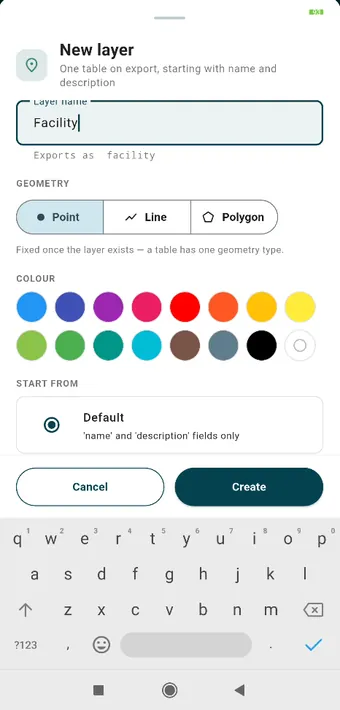
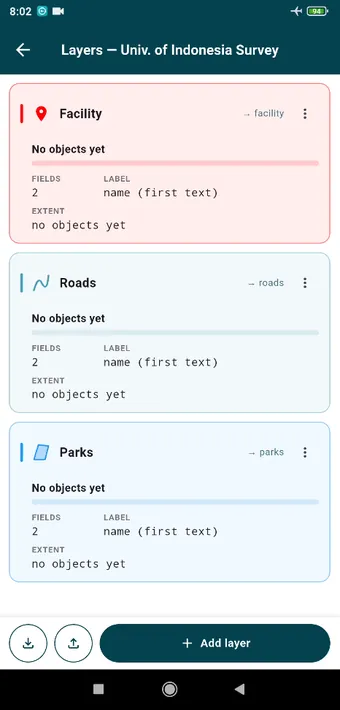
New layer: a name, which is also the table name on export and is shown underneath; the geometry, either point, line or polygon, and fixed once the layer exists; a colour; and where to start from, either the default pair of fields or a saved form.The layers of this survey: Facility for points, Roads for lines, Parks for polygons. Each card shows its fields, its label field, and the extent of what has been collected into it. Add layer sits at the bottom, and the two icons import and export layer definitions.
Fields
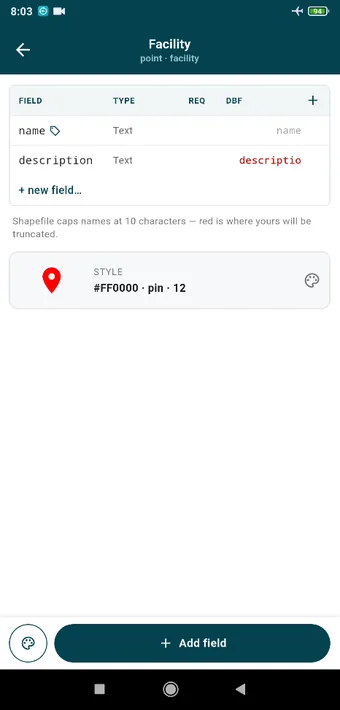
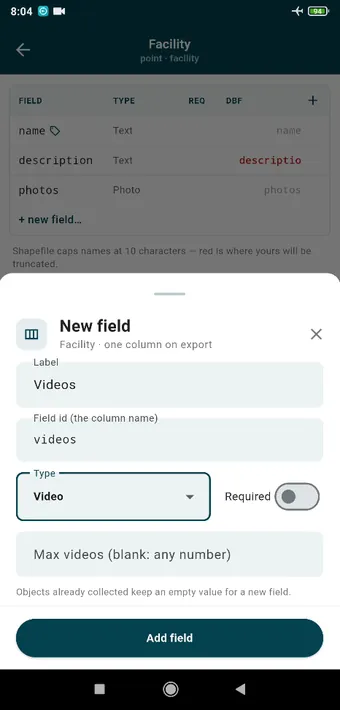
The Facility layer’s fields. name and description are reserved and exist on every layer. The DBF column previews the Shapefile name: Shapefile stops at ten characters, and red marks the ones that would be cut short.
The field types are text, number, dropdown, multi-select, checkbox, date, time, rating, photo and video. Any field can be made required. If you add a field later, the objects you already collected simply hold an empty value for it.
Photo and video fields
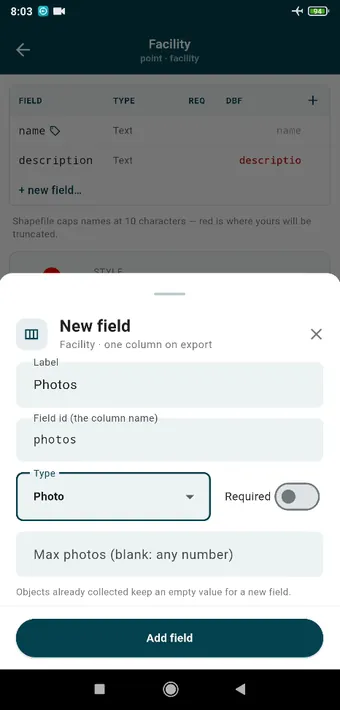
A photo field: a label, the column name, the type, whether it is required, and how many photos it will take. Leave that blank for as many as you like.The same for video. On export each one becomes a column of file paths alongside a related media table, and QGIS opens the files straight from the attribute form.
Filling them in
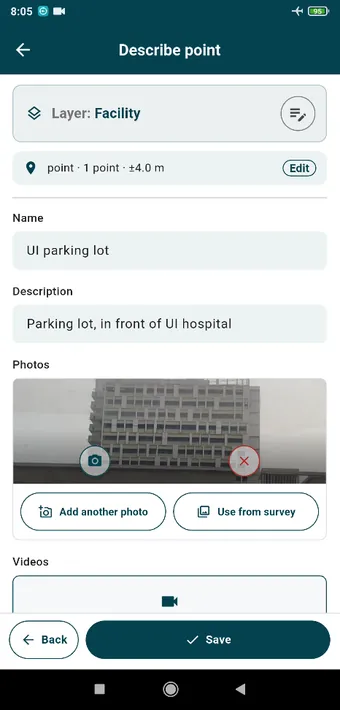
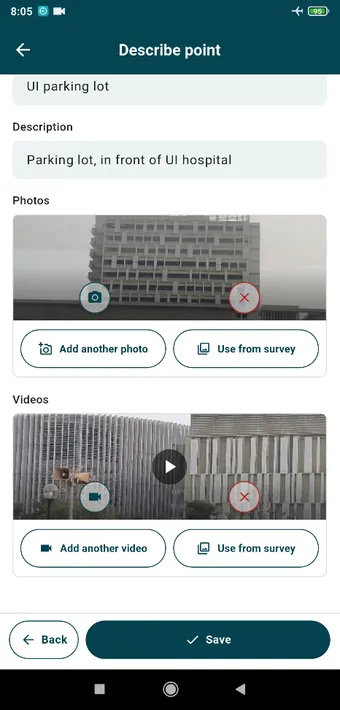
Describe point with the Facility fields. The layer row at the top lets you edit the fields without leaving the page, then come name, description, and a photo taken from here.…and a video added the same way. Use from survey picks from the photos and videos already captured on this survey.
Reusing layers
Export a survey’s layer definitions from the Layers screen and import them into the next one. Or save them as a form in Library › Forms and pick it under Start from when you create a layer.