Map & Navigation
The Map tab is where you work: basemaps, the tools drawer, and the GPS status as it changes.
Measuring distance and area
Tap Measure in the tools drawer, under GPS, and pick Distance or Area from the flyout beside it. Then tap the map to place points. Each segment carries its length at its midpoint, and the labels stay upright however far you turn the map. A bold pill shows the running total at the last point; for an area it sits in the middle of the shape, with the perimeter underneath. Very short segments drop their label as you zoom out, but the total never hides.
When a point has to be exact, use the crosshair at the centre of the map: pan until it is where you want it, then tap +. Or tap GPS to add your averaged position. Every vertex is a handle. Hold and drag one and a loupe shows you the spot under your finger; drag the small circle on an edge to add a vertex there; double-tap a vertex to take it out.
While you are measuring, the drawer shows +, GPS, Undo, Clear and Done. Nothing is saved: Done simply clears it. If you want to keep a length or an area, draw it as a Line or Polygon feature instead. The units come from Settings › Unit System and follow the size of what you measured, so metres become kilometres, hectares become square kilometres, feet become miles and acres become square miles.
Map orientation: the compass button
The compass in the GPS bar has three modes. Tap it to move through them, or long-press to pick one:
- Free rotation, the outlined compass: turn the map with two fingers. The compass turns with it, so it always points at north.
- North-up, the filled teal compass: the map snaps to north and stays there. The rotate gesture is off, but you can still pan.
- Follow direction, the amber arrow: the map turns to face the way you are moving, or the way the phone is pointing while you stand still, and keeps up with your position. Drag the map to take control back, and it drops into Free rotation wherever you left it.
The GPS bar
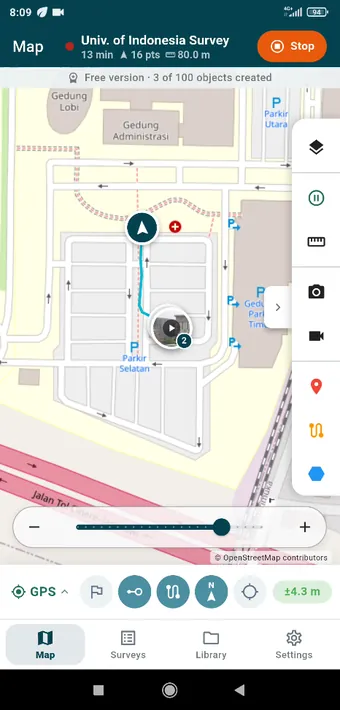
From left to right: the GPS status, which you tap to show or hide the coordinates; the Destinations flag with its count badge, which you tap for the list or long-press to move to the next target (see Destinations); then the track, compass and centre-on-me buttons, and the accuracy chip. Long-press the accuracy chip for the satellite view.