Getting Started
Install the Android app, grant permissions, create your first survey, and get to know the four tabs.
Install
Tavak is an Android app for Android 7.0 and newer, from Google Play. The free version installs with no account and nothing to sign in to: one survey and up to 100 objects, with every feature present, the export and the QGIS project among them. See Free Version & Subscription.
First launch
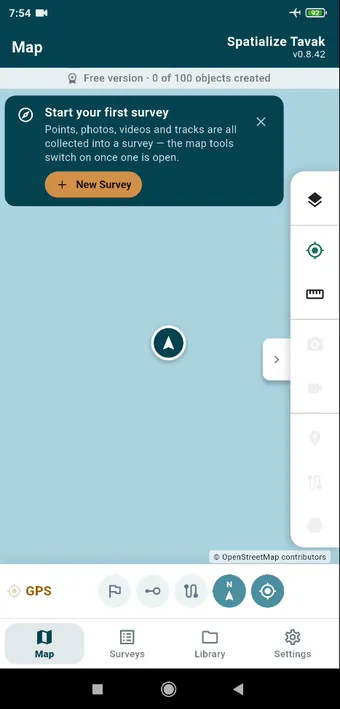
The app opens on the Map tab. A strip under the title bar shows where you stand with the free version (0 of 100 objects created). The card at the top explains the one idea worth knowing: points, photos, videos and tracks are all collected into a survey, and the map tools only switch on once a survey is open.
There are four tabs along the bottom. Map is where you collect. Surveys lists every survey with its contents and its export. Library holds basemaps, datasets, geofences, landmarks and forms. Then Settings.
Your first survey
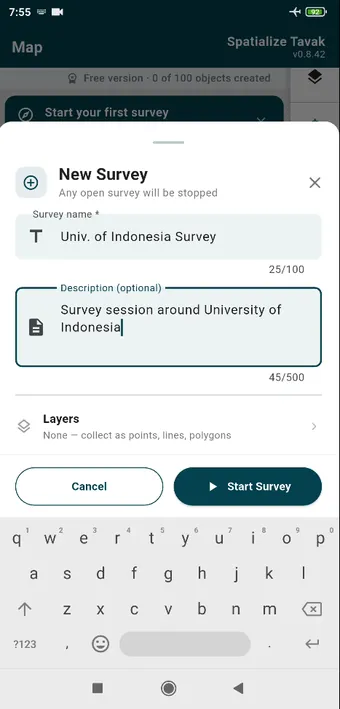
Tap New Survey on the card, or on the Surveys tab. Give it a name and, if you like, a description. The Layers row is where you say what you will be collecting; Layers & Fields goes into it properly. Start Survey begins recording the GPS track straight away.
Permissions, when they are needed
Tavak asks for each permission the first time it actually needs it, and tells you why before Android asks.
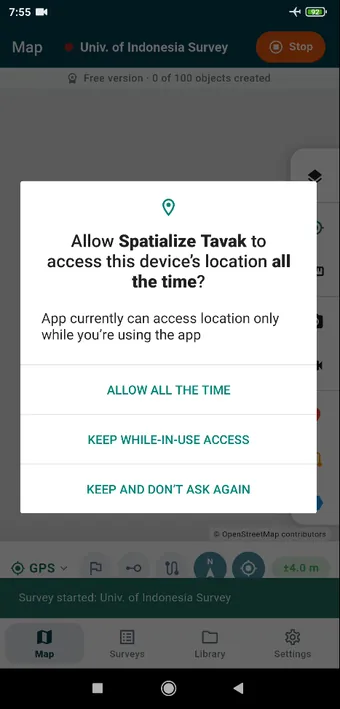
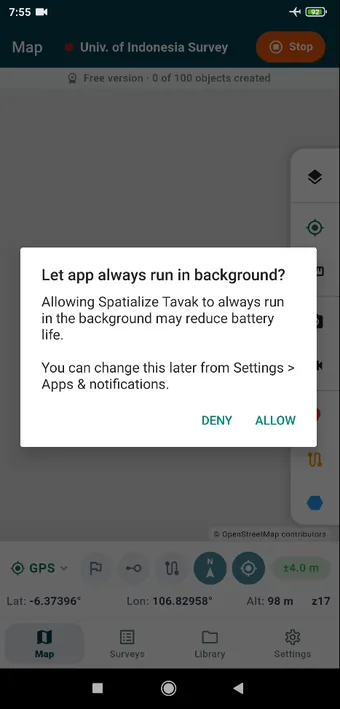
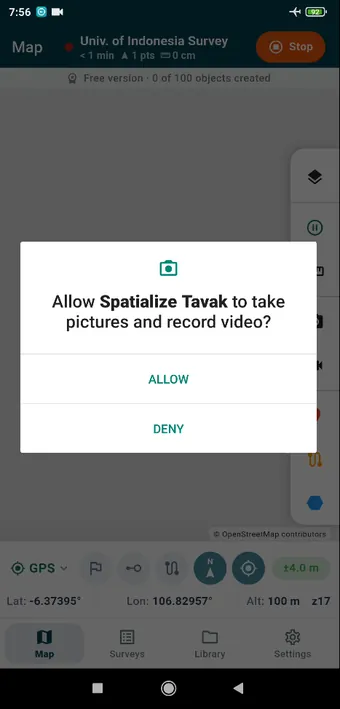
The permissions page lists every permission and what it is used for. Your location never leaves the phone unless you export it; the privacy policy has the detail.
Check the sky
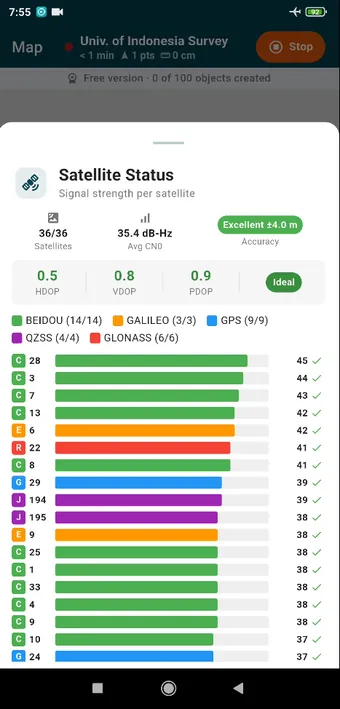
Long-press the accuracy chip in the GPS bar, or tap the GPS status, to see what the receiver is seeing. GPS Tracking covers the modes, the accuracy gate and point averaging.
Where next
- Photos & Videos: the first thing most people collect.
- Points, Lines & Polygons: drawing objects on the map.
- Export & QGIS: getting the day’s work onto a computer.